

JoeNotes The 20-second version
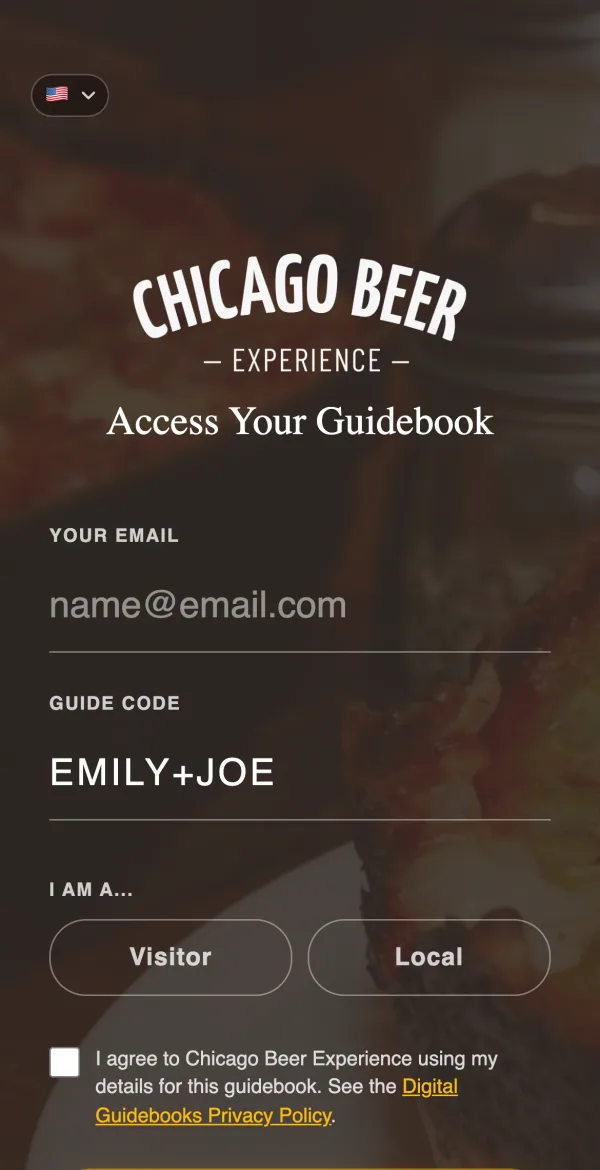
Guests can enter two guides at once, like EMILY+JOE. Both show up in the guidebook, and the tip page says the tip is shared between them.
Your company can have its own tip account. Start a code with TEAM and tips go there instead, for you to split.
Every guidebook has a Default Guide, the one guests see when nobody typed a code.
You can build a guest link with your guides already in it, and download it as a QR code or a card.
A lot of tours do not have one guide. They have a lead and a trainee, or a guide and a driver, or two people splitting a big Saturday group down the middle. Until now a guidebook pretended otherwise. It had room for exactly one guide, and whoever got left out of the code field got left out of the tips too.
So this release is about the people actually running your tours. All of it has been live in your account since October. I was too busy building it to write it up, which is a bad habit, and this is me fixing it.
Two guides, one code field
Guests type both codes into the same field with a plus sign between them: EMILY+JOE. Three works too. There is no second box and nothing new for a guest to learn. If your guides hand out their codes at the start of the tour, they just say both.
Inside the guidebook, Meet Your Guide shows each guide in their own section, each with their own photo and bio. The menu changes from Your Guide to Your Guides on its own.
Tips go to the first guide in the code, and the tip page tells the guest so: Your tip is shared between Emily and Joe. One tip, one account, and your guides sort out the split between themselves.
That last part is deliberate. I looked hard at splitting the tip across two payment accounts and decided against it. A guest deciding what to tip should be thinking about the afternoon they just had, not working out which of two buttons is fairer.
A team tip account for guides who do not have one
Not every guide has Venmo or PayPal, especially in their first season. Until now that guide's tip page simply had nothing on it.
Now your company can have a tip account of its own. You will find it in Settings, under Guest Access, as Team Tip Account. Add the same kinds of payment links your guides use.
Then start a code with TEAM. A guest who enters TEAM+SAM sees Sam in the guidebook, with Sam's photo and Sam's bio, and their tip goes to your team account. You pass it on to Sam however you already pay your people. It works for two guides as well: TEAM+SAM+JO.
Every guidebook has a Default Guide
Some of you run with the access page switched off, so guests go straight into the guidebook without typing anything. Until now that meant the guidebook had to guess who was leading the tour.
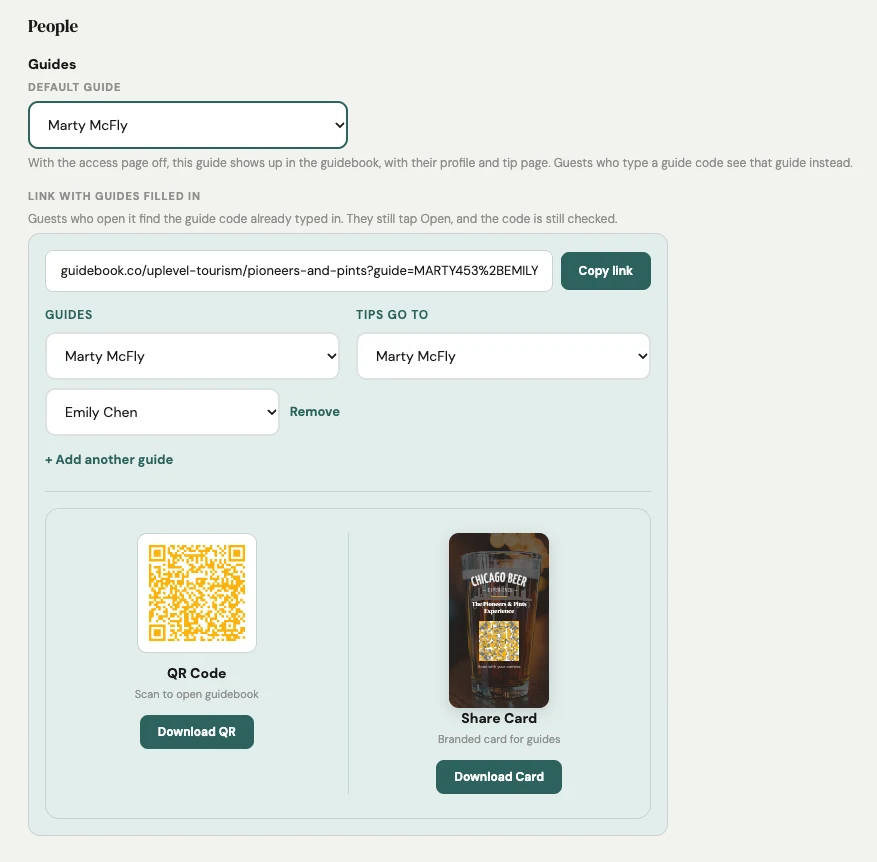
It does not guess anymore. Open a guidebook, go to Settings, then People, and choose the Default Guide. That guide shows up for anyone who arrives without a code, with their profile and their tip page. Or choose your team, and guests see your company instead of one person.
A guest who does type a code still sees the guide they typed. The default is only for the moments when nobody said.
A link with your guides already in it
Right under the Default Guide is a link builder. Pick a guide, add another with + Add another guide if there are two, and choose where the tips go with Tips go to. You get the guest link with those guides already filled in.
Copy it into your confirmation email, or download it as a QR code or a printed card for the van. A guest who opens it lands on the access page with the guide code already typed. The guidebook remembers the last link you built for it, so next Saturday it is still sitting there.
Setting up a two-guide tour
- Check each guide has a photo and a short bio. Both show up on Meet Your Guide, one after the other, so a missing photo stands out.
- If any of your guides do not have a payment account, add your Team Tip Account in Settings, under Guest Access.
- Open the guidebook, go to Settings, then People, and build the link for that pairing. Download the QR code for whoever does check-in.
The first step is the one people skip. Two guides with one face missing reads as one guide and a placeholder.
Every guide has their own link
Your guides can sign in to their own Guide Dashboard at digitalguidebook.co/guide/login. Every guidebook they lead is listed with their own link, a copy button and a QR code, and they can see their own numbers: guests served, tip taps, reviews started and shares.
That means a guide can text their own link to a group the night before without asking you for it. It also means the guide who keeps getting reviews can see it, which tends to make for a good Monday.
Also worth knowing
Guide links from before November 9th now work. For a few weeks, a guide who was not also an admin on your account got a link from their dashboard with part of the address missing. Guests who opened one saw an error page. It is fixed, and those old links, including any printed as QR codes, now go to the right guidebook. If you have been running into this, there is nothing to reprint.
One sign-in, several companies. If you have a login on more than one Digital Guidebooks account, signing in no longer lands you on an expired subscription screen. You get your main account.
Sign-in links survive your email security. Some company inboxes open every link in an email to check it for safety, which used up your sign-in link before you could. Your sign-in email now opens a confirm page first, so the scanner can look all it likes.
Guest surveys. If you missed it in October, every Destination Leader and The Landmark account can now ask guests a score and three short questions at the end of the tour. The Feedback Release has the details.
Most of this came from watching how your tours actually run rather than how software assumes they run. If your Saturday looks different from what I have described here, tell me. That is usually how the next release starts.